# Ring Groups
A ring group is used to distribute a call to a group of extensions and other account types. In contrast to a call queue, callers are not lined up and routed immediately instead.
# Creating Ring Group
Go to your selected tenant in the Link web interface.
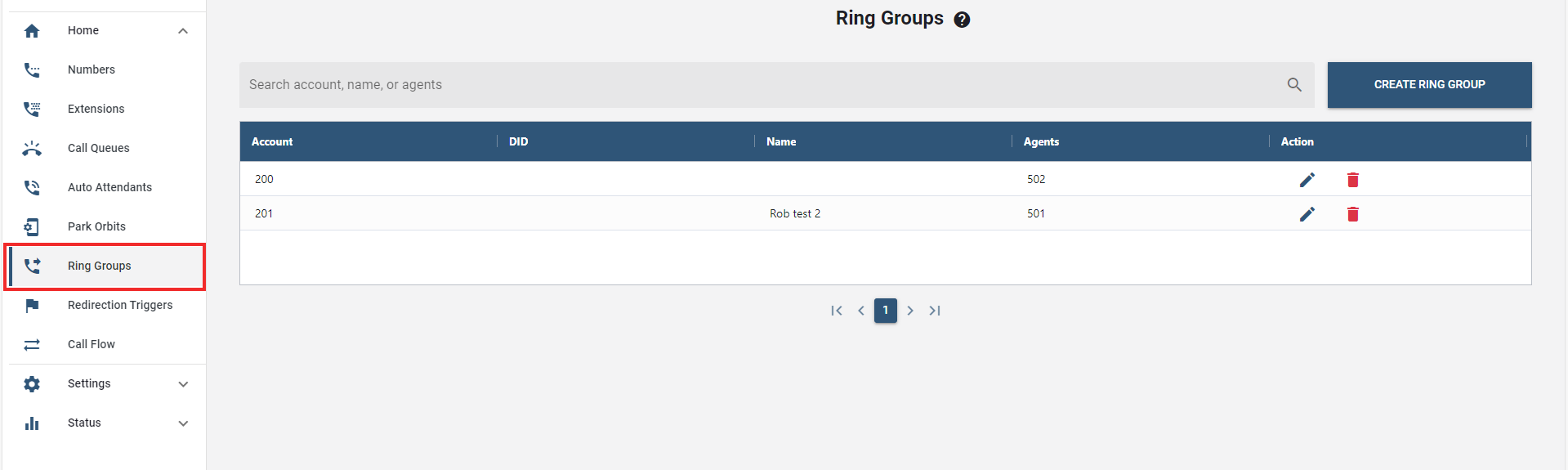
On the sidebar menu, select the "Ring Groups" tab.
Click on the button.
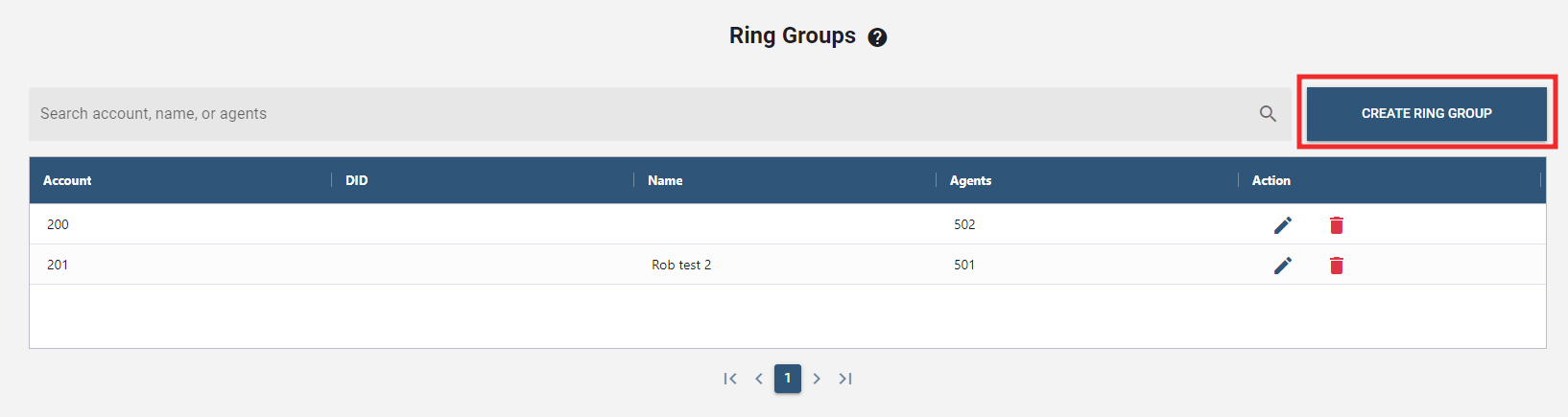
Once clicked, a new window will pop up to enter the details.

- In the display name field, enter a descriptive name for the group.
After the field has been populated, click .
The newly created Ring Group(s) will be set out in the Ring Group accounts list.
# Configuring Ring Group
Once ring group account has been created, use the following steps below to configure it.
- Select an account from the park orbit list.
- Click the "edit icon" under the Action column.

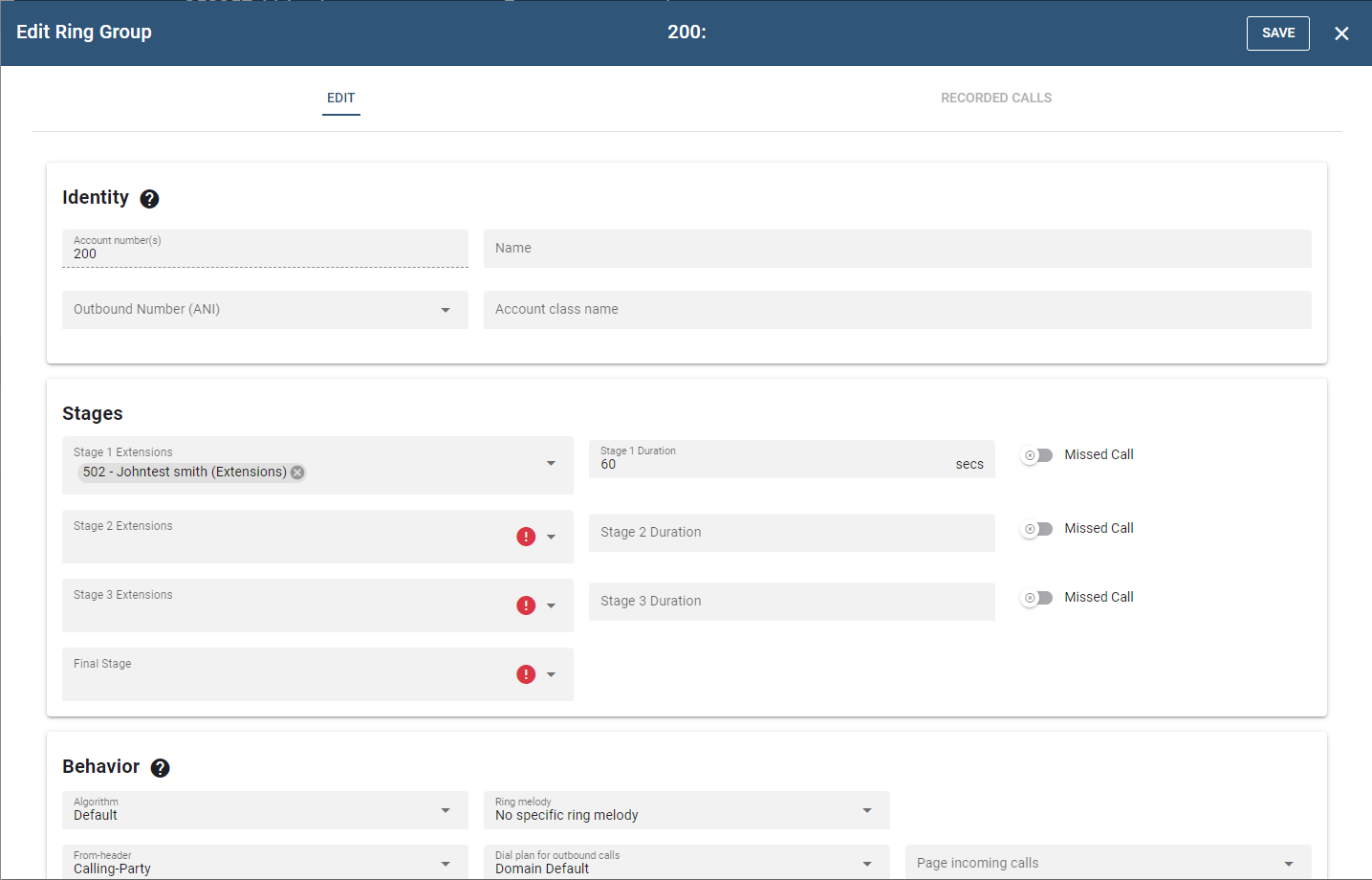
- Following that, a new window will pop up to configure the details.
# Explanation and Use of the Settings
# Identity
- Account Number(s): This field takes extension number(s) and/or DID number(s). The number of DIDs that can be entered into this field is unlimited.
- Name: The purpose of this field is to provide a name for the Account so that it will be easy to distinguish from other Accounts.
- Outbound number (ANI): The ring group uses an ANI (automatic number identification) when sending a caller to an external number.
- Account class name: The account class name for the ring group, which can be used for billing purposes.
# Stages
The extension numbers that are part of a ring group can be arranged into groups known as stages. Each stage is configured to ring for a specified period before the system begins ringing the next stage. To continue ringing the same extension throughout all stages, include that extension in each ring stage. A last-resort or final stage number (often an auto attendant or a cell phone) can also be used when none of the extensions pick up the call. A common use case for the ring group is to use the ring group as the main number for incoming calls, then put the receptionist, secretaries, and assistants on the various stages.
Regular numbers can also be included in the ring groups, not only extensions. That makes it possible to call devices that cannot register as SIP endpoints. When including cell phones in ring groups, it is better to use the extension number and enable the cell phone forking in the extension setting.
The ring group supports three stages and a final stage. Each stage can be configured to ring for a different number of seconds, and the final stage can be either an internal or external phone number.
For each stage:
- List the extensions or numbers that should be part of that stage. When entering multiple extensions, use a space as a separator (only one number is permitted for the final stage).
- For duration, specify the length of time that the system should ring at each stage before ringing the next. The duration of the stages must be specified in seconds.
- For unwanted stages, leave the fields empty.
If all extensions of a stage are unavailable, the system will immediately move to the next stage.
If you check the missed flag for the stage, the PBX will send a missed call indication to the phone when it moves to the next stage and the phone is not part of the next stage.
# Behavior
Behavior settings allow the user to control numerous account behaviors. Ring melody, display header, and music on hold source options are available to select. A safety net phone number can also be entered in case no one picks up the call. Other settings are also available.
Algorithm: By default, the ring group calls all agents, IVR nodes and numbers in each stage up and connects the call to the first that accepts the call. In the case of IVR nodes this is the first that is idle. If the algorithm "Select most idle agent per stage" the system will call only one agent per stage. This makes it possible to automatically balance the call load on several extensions in a fair way.
Ring Melody: This setting enables the ring melody to be set so that ring group members will be able to distinguish regular calls from ring group calls.
- Custom 1 through 4: Custom ringtones allow the user in a ring group to distinguish ring group calls from other calls. Before customized ringtones can be used, owned ringtones must be provided, modify the ringtones.xml file, then place it into the html directory. When the phone receives the alert-info header from the system, it will respond with a different ring tone based on the ringtone that was selected from the web interface.
- External Call: The ring tone will be long.
- Internal Call: This ring tone will be short.
From Header: It is possible to set the display name that ring group members will see when someone calls them using this setting. More information on this subject is available below.
Dial plan for outbound calls: This setting allows the configuration of dial plan behavior that is different from what has been set on the extension. For example, to enable the extension to receive ring group calls on their cell phones even if the dial plan on the extension does not allow for outbound calling, (see When calling the extension in a ring group), select a dial plan that allows it. There are many other uses for this setting as well.
Page incoming calls: The system can use a paging group to announce the caller's information for an incoming call.
Send daily CDR report to : The call data record (CDR) lists all calls that come into the ring group. The report is sent at midnight each night to the email address listed in this field (e.g., voicemail@vodia.com). Only one email address is allowed in this field.
Send email about missed calls: The system can send an email when a call was missed. This field contains the email address or the email addresses for those reports.
Music on hold source : From the dropdown list, choose the music that callers will hear while waiting.
Ringback source: By default the system will use the ringback file to indicate that the group is trying to reach an agent. However, if custom ringback sources are available for the tenant, a different file can be expected for the group.
Record incoming calls to ring groups : When this setting is enabled, the system will record all calls that come into the ring group. The recordings can later be retrieved and reviewed.
Turn off the cell phone forking: The cell phone inclusion of the agents' cell phones can be turned off specifically for this ring group.
Follow redirect all setting: When an agent is redirecting all calls, the ring group can use this setting and redirect incoming calls accordingly. By default, this setting is turned off.
Allow agent connect ActionURL: When this flag is set the PBX will trigger the ActionURL for connecting an agent.
Enable call pickup from extension BLF: By default, the PBX will show that an extension is busy when a call rings the agents' phones. If this flag is turned it, the PBX will make it possible to pick the ring group up from the extension BLF.
Allow agents to divert incoming calls: If this setting is turned on, agents can use their VoIP phones to deflect incoming calls to another destination. Please note that some phones will send call redirections by themselves, for example because a local call redirect after timeout or a call redirect for all calls was set on the device.
CRM account: When using CRM integration, the system needs to associate a call to the ring group with an account that exists on the CRM system if there was no agent that picked up the call (e.g., in the case of a missed call).
Redirect destination for suspected SPAM calls: If there is a suspected SPAM call, this field tells the system where to redirect the call. If the field is empty the system will accept the call.
# Redirection
There are several conditions to redirect calls during off-hours, meetings, etc. See Redirection Triggers for time-based redirection conditions. The following conditions are available:
- Always: Always redirect calls. This flag can be useful to temporarily bypass the group or when it is set through an API call.
- When redirection trigger is active/ not active: The redirection depends on the state of a redirection trigger.
- No agent has phone registered: The redirection will be triggered when all agents have no registration. This can be useful e.g, when an office went offline and a redirection to a cell phone number is needed.
- Caller in address book: The call is redirected when a caller is in the shared address book. If a category is listed, only callers that are in that category will be redirected. This way, a VIP service can be implemented.
# Recorded Calls
Calls made to ring groups can be recorded and saved on the system. In this section, it provides the lists of recorded calls which are displayed in the table. All the details regarding the call are documented. This includes the duration of the call, the time at which it started and ended, the agent, and the action taken.
NOTE: Once any changes are made, click the button to confirm and process the updates.