# Numbers
This page displays the available DIDs within a particular domain and serves as a tool to add and order new numbers. Ordering a new number involves a two-step process, initially searching for an available number and then leasing the number to the customer's inventory.
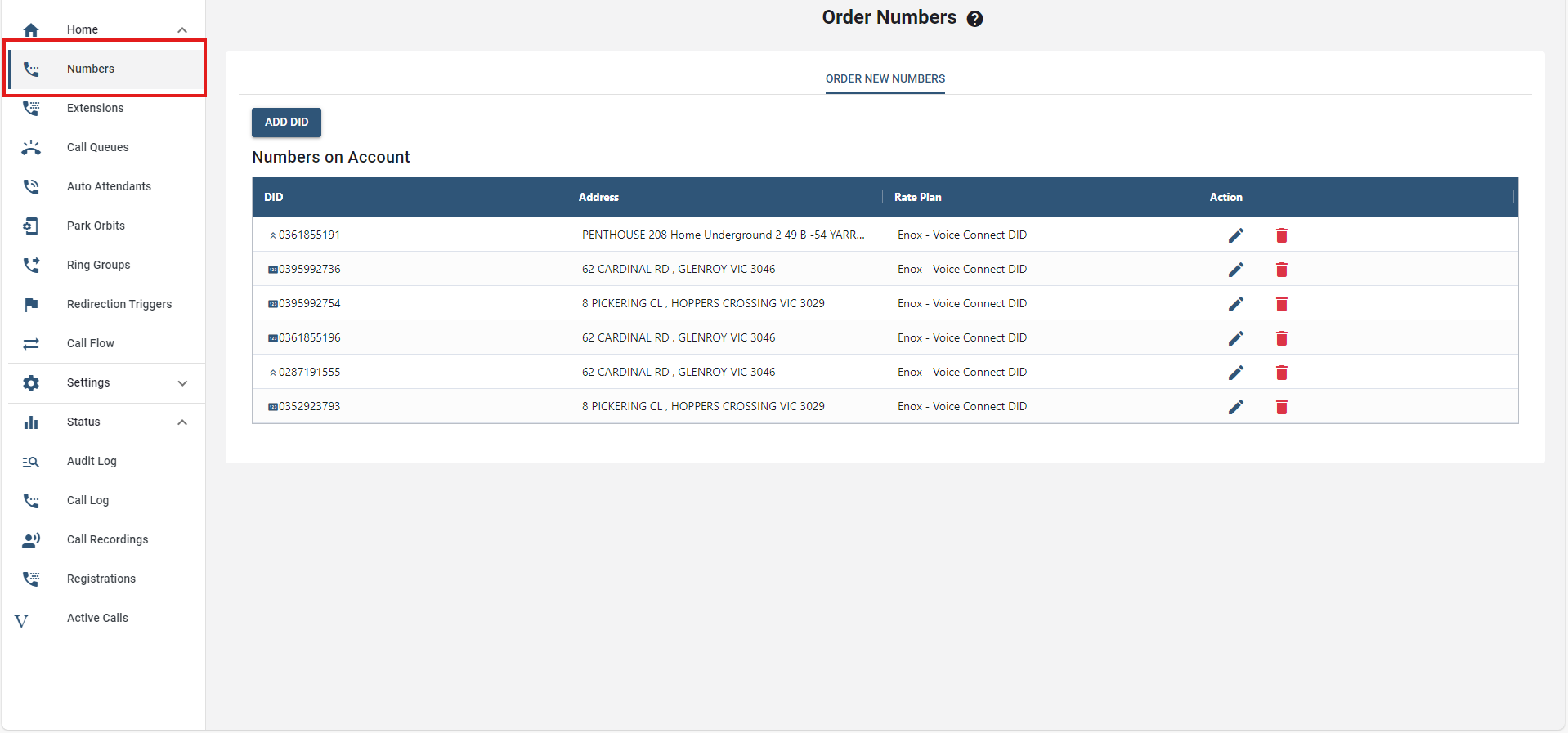
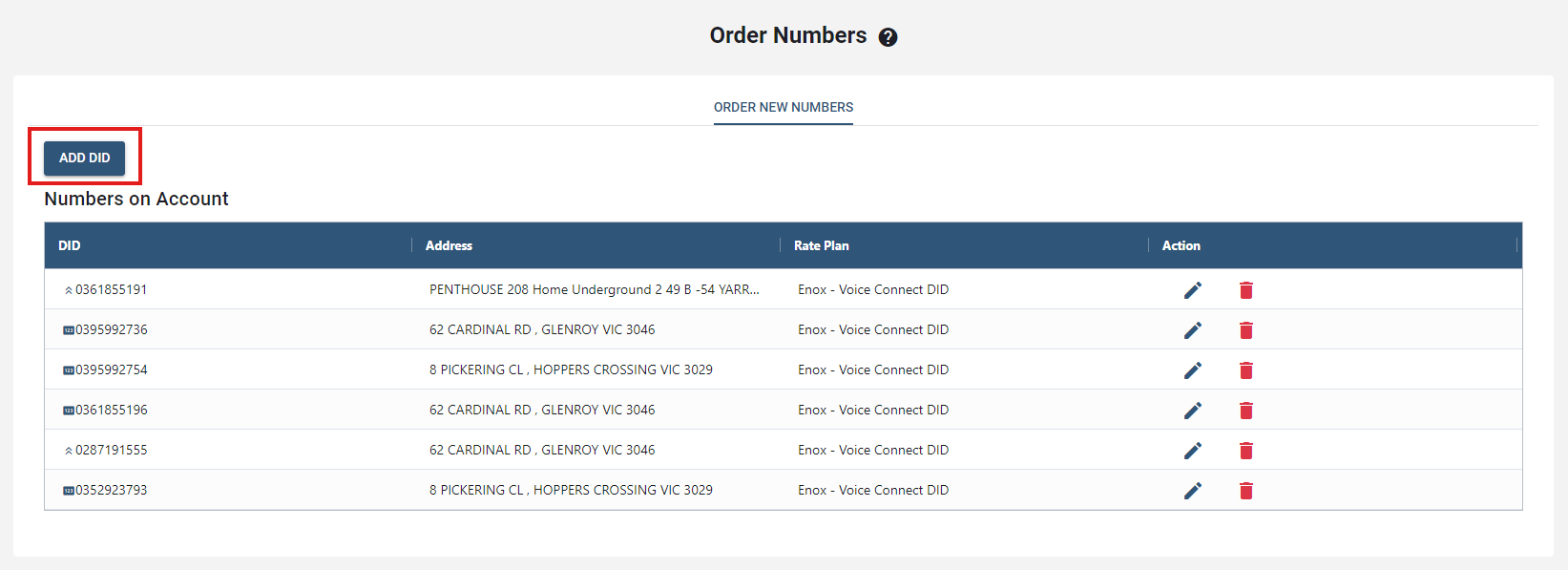
# How to ADD a DID;
- Click on the button.
- Once, clicked, a new window will pop up. Provide the required fields.
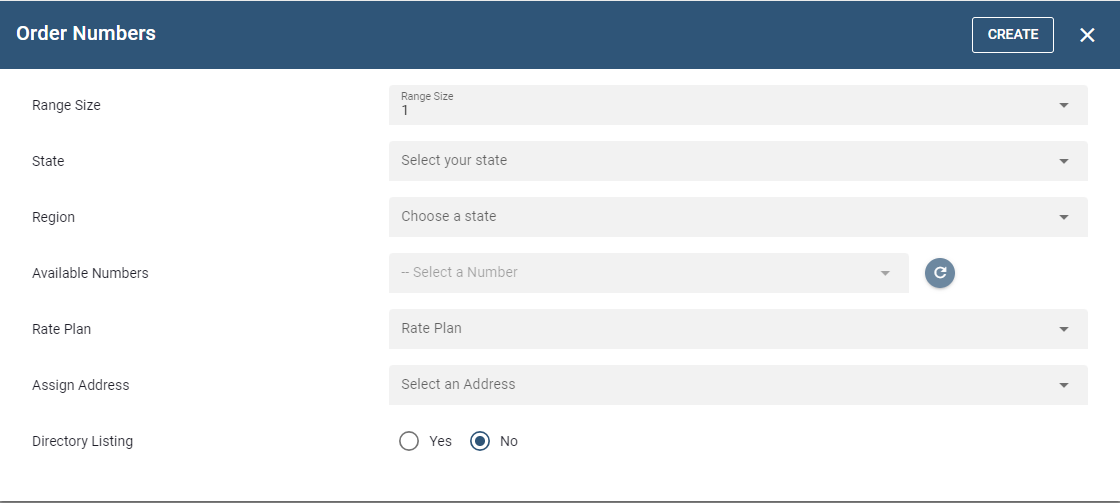
- When all the fields are populated, click on and this will process the ordering of number in the Utilibill.
# Configuring a Number
- To configure a number, click on the "edit icon" under the Actions column.
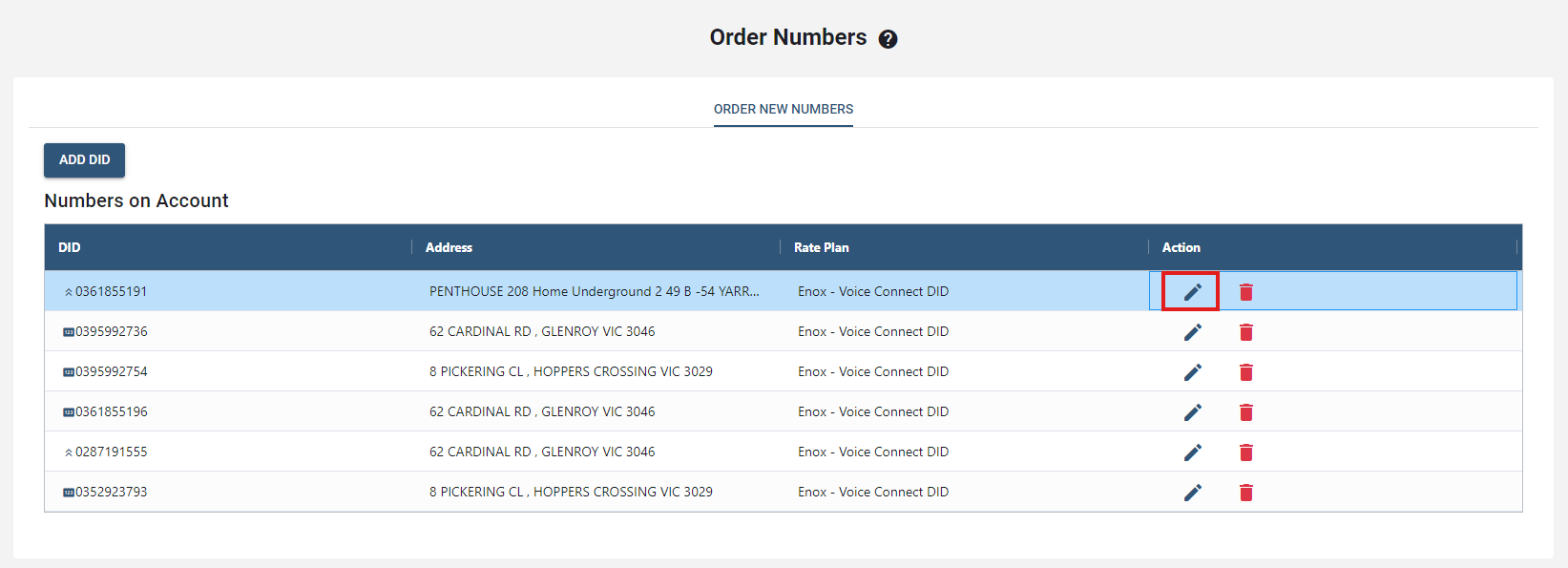
- Following that, a new window will pop up to edit the DID details.
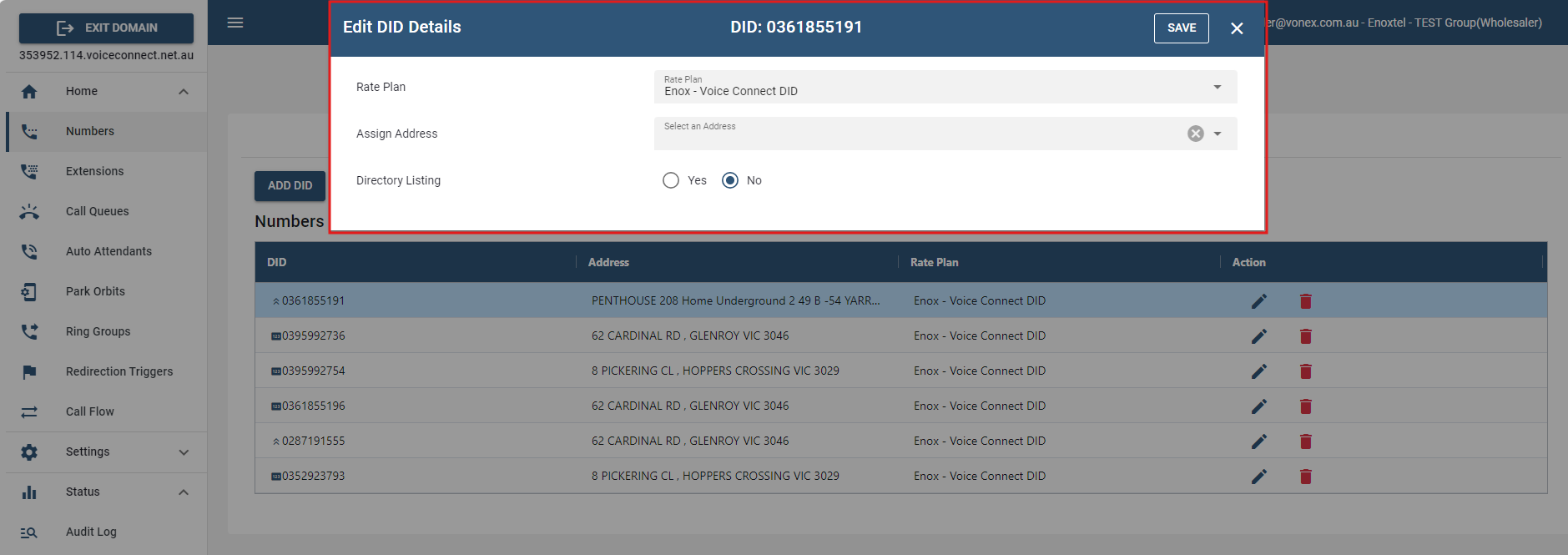
- Once any adjustments are made, simply click the button to confirm and process the updated configurations.
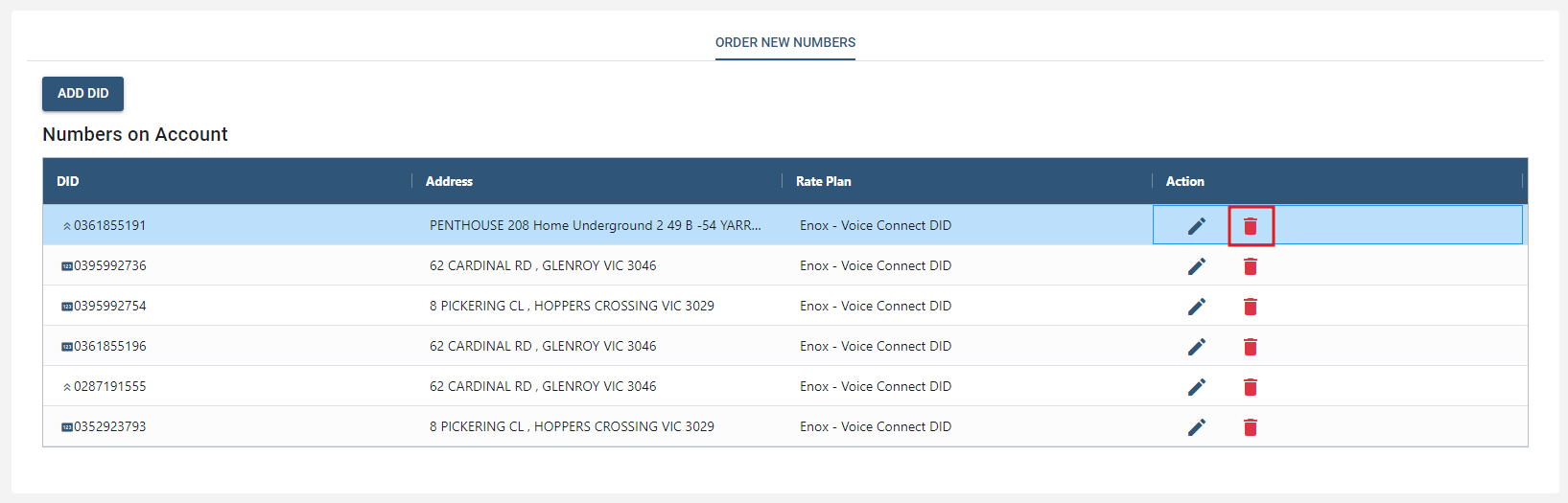
- A number can also be deleted by clicking the "delete icon" under the Action colum.
← Home Extensions →